Voice assistants turn a familiar form into a conversation. That can make a task feel faster and more approachable, but it also removes the visual cues people rely on: labels, examples, required-field markers, and the ability to scan everything at once.
A good voice flow does not read a desktop form aloud. It asks only for the information it needs, in a sensible order, and gives people a clear way to correct, skip, or switch to typing.
What Makes a Voice Form Different?
In a visual form, people can see the remaining fields and decide what to complete first. In voice, the assistant controls the pace. Each question must therefore carry its own context and make the expected answer obvious.
- Ask one thing at a time.
- Use language people would naturally say out loud.
- Confirm information only when the cost of being wrong is meaningful.
- Always preserve an alternate keyboard or touch path.
Start With the Minimum Useful Fields
Every additional question adds memory load and gives people another chance to abandon the task. Start by mapping the smallest set of details required to produce a useful outcome, then collect optional information later.
For a service enquiry, that often means the person's name, a contact method, the service they need, and a short description of the request. Details such as company size, exact budget, and preferred meeting time can follow only if they change the next step.
The Core Form Fields to Design
Name. Ask: “What should I call you?” This works better than “Please provide your full name” and allows users to give the name they prefer.
Contact details. Say why the detail is needed before requesting it: “Where should we send your project summary?” Read back phone numbers or email addresses in groups, with an easy correction option.
Choice fields. Keep spoken options short. For example: “Is this for a website, an app, or branding?” If there are more than three or four choices, offer a category first or show options on screen.
Open-ended request. Use an invitation, not a rigid prompt: “Tell me a little about what you want to build.” Let the assistant summarise the answer and ask whether it captured the intent correctly.
Write Questions People Can Answer Naturally
Voice interfaces should accept the many ways people describe the same thing. “Next Friday,” “the 12th,” and “Friday morning” may all be valid responses to a scheduling question. Design the assistant to interpret common variations, then clarify only the missing part.
- Use short sentences and one idea per prompt.
- Avoid jargon, internal field names, and long lists of choices.
- Give a brief example for unfamiliar formats, such as an account number.
- Let users say “go back,” “skip this,” “start over,” or “talk to someone” at any point.
Validation Should Help, Not Interrupt
A visual form can highlight an incorrect field without stopping the user. Voice validation is more disruptive, so it should be specific and calm. Instead of saying “invalid input,” say what is missing and offer the smallest possible repair.
For example: “I heard the email as maria at studio dot com. Is that right?” If the answer is no, let the user repeat the complete address or correct just one part. Avoid making them restart the entire form.
Choose What to Confirm
Repeating every response makes a conversation feel slow. Skipping confirmation entirely can create expensive mistakes. Confirm sensitive, high-impact, or easily misheard details; silently accept low-risk details when the confidence is high.
- Confirm phone numbers, email addresses, addresses, dates, payment information, and irreversible actions.
- Summarise multiple answers before submission: “I have a website redesign enquiry for September. Shall I send this?”
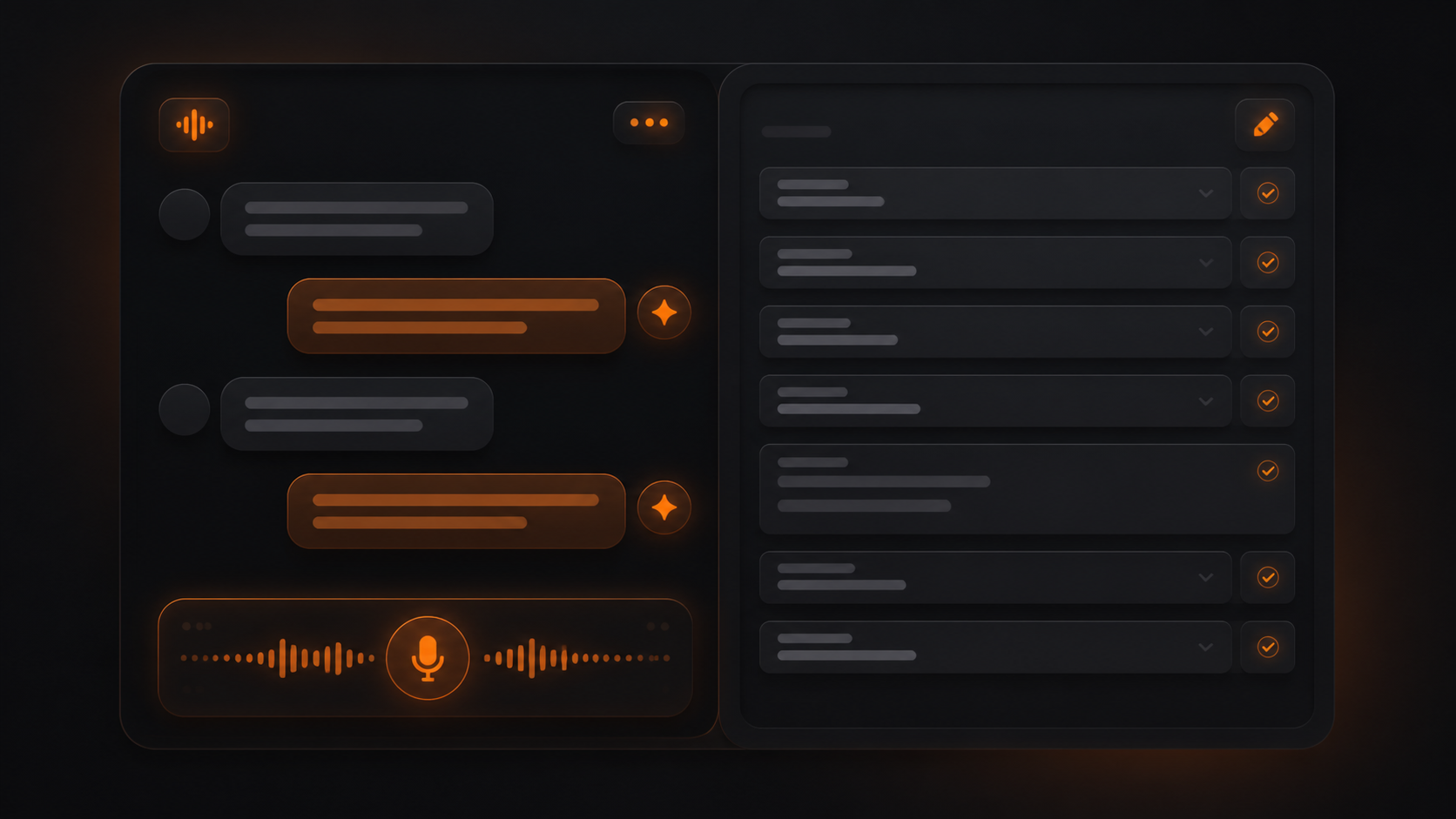
- Show a written transcript and editable summary whenever a screen is available.
The Ideal Voice Form Flow
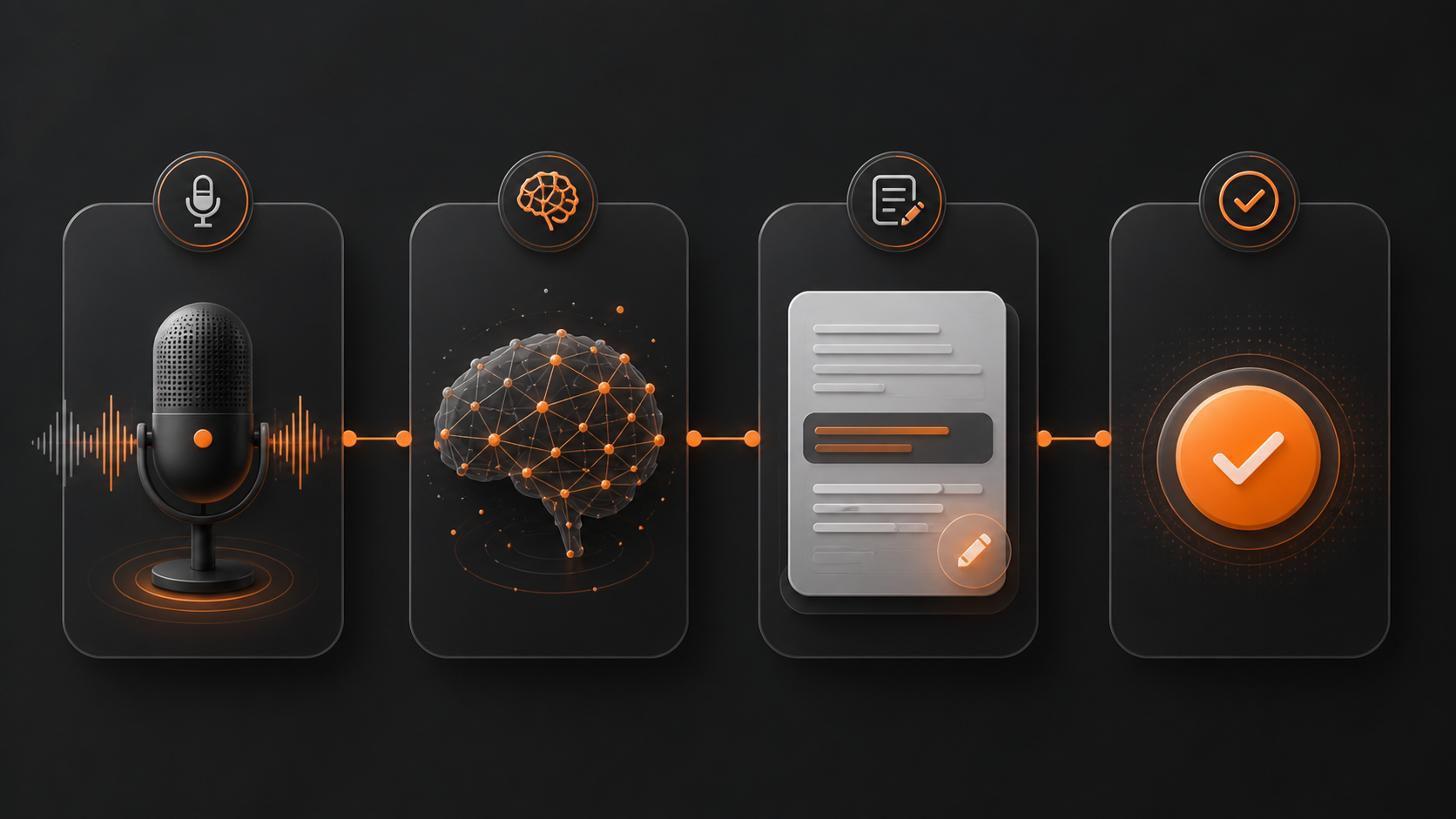
A reliable voice-enabled form has four clear states. First, the user speaks in their own words. Next, the AI extracts intent and flags anything uncertain. Then the user reviews an editable summary. Finally, the assistant submits only after the user has approved the action.
This pattern prevents the common problem of a voice interface feeling like a black box. It gives people the speed of speech while preserving the confidence of a conventional form.
Design Better Voice Error States
A form error should never make a person feel at fault. When recognition is uncertain, tell the user what you heard and make the repair easy. A useful response is: “I heard Tuesday at 3 PM. Did you mean Tuesday or Thursday?” This gives a focused choice instead of demanding the full answer again.
- Use confidence-aware prompts instead of pretending an uncertain result is correct.
- Let users correct a single word, number, or date rather than restarting the field.
- Keep the original response visible in the transcript for quick review.
- Offer touch and keyboard controls after repeated recognition failures.
Explain Privacy Before Asking for Sensitive Details
A voice assistant may collect personal information in public or shared spaces, so context matters. Before requesting an email address, address, or payment detail, explain why it is needed and whether the user can skip it. Provide a visible privacy link and avoid recording more speech than the task requires.
Trust grows when permissions, recording status, and data use are understandable. The same principle applies to AI form assistants on websites, apps, call flows, and customer-support experiences.
Design for Accessibility and Real Environments
People may be in a noisy place, have a speech difference, prefer not to speak aloud, or simply want to move faster with a keyboard. Voice should be an input option, never the only door into a task.
Pair every spoken prompt with visible text, provide captions for assistant responses, keep controls reachable by keyboard, and allow users to switch between voice and text without losing progress.
Handle Uncertainty and Human Handoffs
An assistant will occasionally misunderstand a response or encounter a request outside its scope. Treat these as ordinary moments in the flow. Be transparent about what happened, offer a simple retry, and make escalation visible.
- After two failed attempts, offer typed entry or a human handoff.
- Do not pretend the assistant understood an answer with low confidence.
- Keep the answers already collected when a user changes channels.
- Explain the next step after a handoff, including when to expect a reply.
Voice Form Checklist
- Does each prompt explain what the user should say?
- Are only essential fields required up front?
- Can users correct, skip, go back, or type instead?
- Are sensitive details confirmed without repeating everything?
- Is a readable, editable summary available before submission?
- Does the flow work with noise, accents, pauses, and partial answers?
- Is there a clear route to human help?
- Are microphone status, privacy choices, and permissions clear before recording begins?
- Can the experience be completed with touch, keyboard, or assistive technology?
Final Thoughts
The best AI voice assistant forms feel less like data collection and more like a helpful colleague getting the right brief. Keep the questions purposeful, make the assistant's understanding visible, and give people control whenever conversation is not the fastest path.